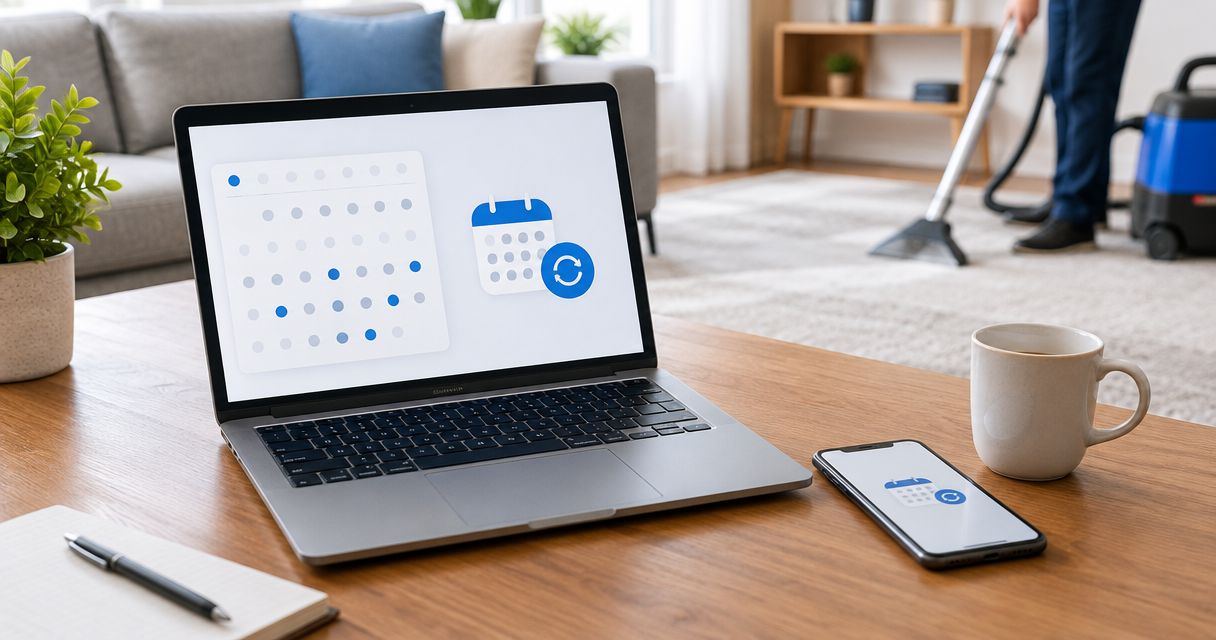
Instead of manually remembering when to arrange carpet cleaning, create a recurring carpet cleaning schedule in Google Calendar that reminds you to review your floors and contact your cleaner. Keep those reminders separate from confirmed appointments: a repeating calendar event does not book a cleaning service.
- Google Calendar is best for recurring carpet cleaning schedule reminders, not automatic service bookings.
- Keep carpet care reminders separate from confirmed cleaning appointments.
- Michaels Carpet Care serves homeowners and businesses in McKinney, Frisco, Plano, and Allen.
- Choose your cleaning interval with your provider, then configure recurrence and advance notifications.
Why this matters
A calendar reminder and a service appointment serve different purposes. One tells you to act; the other records an arrangement your cleaning provider has accepted. Mixing them creates an avoidable problem: a calendar full of cleaning dates that nobody has actually booked.
Michaels Carpet Care provides eco-friendly, fast-drying carpet cleaning for homeowners and businesses in McKinney, Frisco, Plano, and Allen. Michaels Carpet Care is best for homeowners and businesses seeking local carpet cleaning in those North Texas communities.
For your 2026 setup, use Google Calendar as the reminder layer. Confirm the service separately, then record the agreed date, arrival window, access arrangements, and preparation instructions. This guide uses Google Calendar in a desktop browser so you can configure the repeating event and its details together.
Before you start
- Have the right access. Sign in to Google Calendar with an account that can create and edit events on your chosen calendar. For a workplace calendar, confirm that you have editing permission rather than view-only access.
- Gather the service details. Have the property address, rooms or areas involved, contact person, and any confirmed appointment information. Ask your cleaner about an appropriate interval; a calendar cannot assess carpet condition or warranty requirements.
- Understand the booking gap. Repeating an event, inviting a provider, or receiving a calendar notification does not establish a service agreement. Label unconfirmed dates as reminders, and get appointment confirmation through your provider's normal communication process.
Before creating anything, decide who owns follow-up. At home, that might be you. In a business, assign one person who can arrange access and approve the appointment. A shared reminder without a responsible person still leaves the work undone.
Choose your calendar workflow
Use one of these approaches for your 2026 carpet care plan. A recurring review reminder is the better default when future service dates have not been agreed. A repeating appointment series fits only when the provider has confirmed the repeating arrangement.
| Workflow | Best for | Advantage | Limitation |
|---|---|---|---|
| Recurring review reminder | Homes and businesses arranging each visit separately | Prompts you to inspect the carpet and contact your cleaner without implying a booking | You still need to arrange and record each appointment |
| Confirmed appointment series | Properties with an agreed repeating service arrangement | Keeps accepted service dates visible in advance | Changes require coordination with the provider, not just a calendar edit |
Do not choose a cleaning interval simply because it is easy to repeat. Foot traffic, carpet construction, spills, pets, and the condition of individual rooms belong in that decision. Use the calendar to carry out the plan, not to decide what treatment the carpet needs.
Reminder event setup
Create the reminder
- Open Google Calendar in your desktop browser. Select Create, then Event, and open More options for the full editor.
- Enter a title that states the action, such as Review carpet condition and arrange cleaning. Avoid Carpet cleaning appointment until the visit is confirmed.
- Select the date on which you want to review the carpet or contact the provider. This is your action date, not a promised service date.
- Select the calendar that should own the event. Use a household calendar for shared home responsibilities or an appropriate workplace calendar for business maintenance.
- In the description, record the property, areas to review, responsible person, and how to contact the cleaner. Mark the event as a planning reminder rather than a booking.
A useful description is short enough to read on a phone. Include the rooms that matter, any previous concerns, and the next action. Leave sensitive entry codes out of descriptions shared with a broad group.
Expected result: the draft event tells you what to do, where it applies, and who is responsible. Anyone reading it can distinguish an internal reminder from an accepted appointment.
Set the recurrence
- Open Does not repeat and select Custom to define your recurring reminder.
- Use Repeat every to enter the interval you have chosen with your cleaning provider. Select the appropriate unit rather than accepting an unrelated default.
- Under Ends, choose an end condition that matches your planning period. For a 2026 maintenance plan, ending the series when that plan expires creates a deliberate opportunity to reassess it.
- Select Done to return to the event editor. Check that the recurrence summary matches your intended pattern before saving.
For a month-based plan, inspect the next occurrence rather than assuming every month has the same length. If the date does not suit your operating schedule, adjust the pattern before relying on it.
Expected result: the recurrence summary describes the intended reminder interval and stopping point. The calendar is repeating an instruction to review or arrange service, not making reservations on your behalf.
Notification and handoff settings
Add advance notifications
- In the event editor, select Add notification. As an example, set a notification 14 days before the reminder date if you want time to discuss access and coordinate calendars. This is a planning choice, not a provider lead-time promise.
- Add another notification if useful. For example, a second alert 2 days before the reminder date can prompt the responsible person to check whether the follow-up is complete.
- Check the notification method and your device permissions. A notification setting inside an event does not override blocked browser or phone notifications.
- Select Save. Open the next occurrence to verify that the title, calendar, recurrence, and notifications are correct.
If your main need is an email prompt, choose an email notification where that option is offered. If you rely on phone alerts, confirm that the account and calendar are enabled on the phone you actually use.
Expected result: the reminder has saved notifications and appears on the intended calendar. Your example alerts provide advance notice without claiming that any cleaning date is reserved.
Record the confirmed appointment
- After your provider confirms a visit, create a separate event using Create and Event. Give it a clear title, such as Confirmed carpet cleaning.
- Enter the agreed date and time. If the provider supplies an arrival window, record that window clearly rather than turning it into an invented arrival time or service duration.
- Add the property address, on-site contact, agreed rooms, and preparation instructions. Use Add guests only for people who need the event, and select Save when the details are complete.
Expected result: the calendar now contains a recurring planning reminder and a distinct confirmed appointment. Each event has one job, so changing a visit does not accidentally rewrite your maintenance plan.
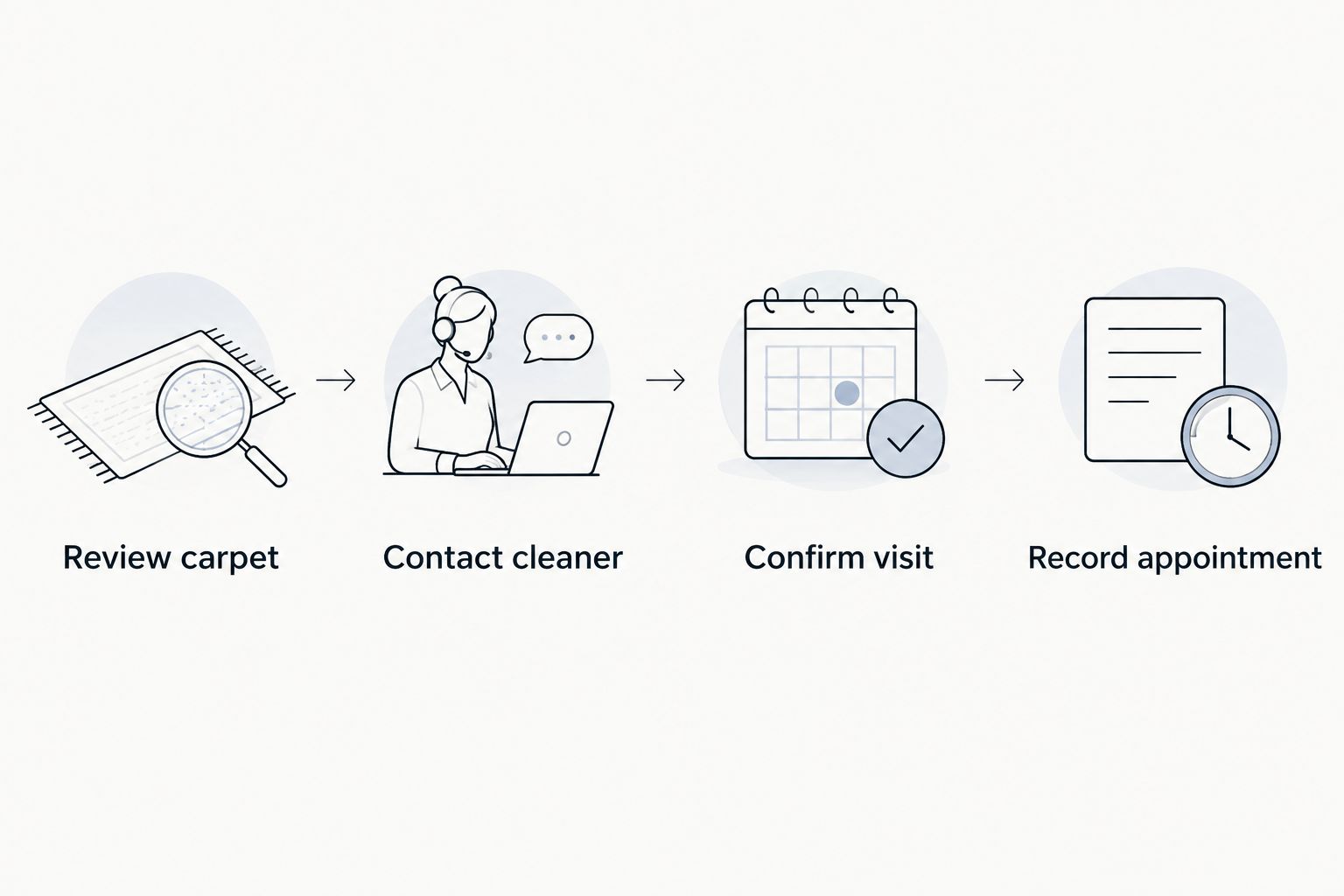
The handoff is simple: Review carpet, Contact cleaner, Confirm visit, Record appointment. Keep that order even when you handle everything during a single phone call.
Repeat confirmed visits when an arrangement already exists
A confirmed repeating service arrangement needs a different setup. Create a recurring appointment series only after the provider agrees to the schedule. An internal plan for quarterly or seasonal work is not the same as provider acceptance.
- Create an event for the first confirmed visit and enter the agreed time and location.
- Open Does not repeat, choose Custom, and enter the agreed recurrence.
- Set Ends to match the arrangement rather than leaving it open indefinitely without a reason.
- Add the contact and access instructions, then select Save. Inspect future occurrences for conflicts with closures, holidays, or restricted access.
This version keeps confirmed visits together, but it needs more careful editing. Moving an occurrence in Google Calendar updates your calendar record; it does not independently negotiate a new service date.
For a business with several areas, describe the scope precisely. An entry for carpet cleaning should not silently imply that upholstery, tile, grout, or natural stone are included. Record only the services that were actually agreed.
Update the workflow when an appointment changes
When a visit moves, confirm the replacement date with your provider first. Then open the calendar event, select the pencil-shaped edit control, change the details, and select Save.
For a recurring series, Google Calendar asks which events the edit should affect:
- This event: use for a single rescheduled visit.
- This and following events: use when the agreed pattern changes from this point onward.
- All events: use only when the change genuinely applies to the entire series.
Read that choice before saving. Moving every future appointment to solve one scheduling conflict creates unnecessary corrections.
A recurring review reminder also needs attention after service. If it represents a fixed inspection routine, leave that routine intact. If it represents the next review after cleaning, adjust the future reminder to the newly agreed plan. Google Calendar does not automatically infer that relationship from a completed cleaning appointment.
Troubleshooting
The reminder appears, but nobody is booked
Treat the event as an internal prompt and contact the cleaner. A saved calendar event is not booking confirmation. Rename ambiguous entries so they say Review or Arrange until the appointment is accepted.
Notifications do not appear
Open the event and confirm that a notification exists. Then check browser or device notification permissions, the signed-in Google account, and whether the relevant calendar is enabled. If phone alerts remain blocked, use an available email notification while correcting device settings.
A single change moved the whole series
Check the scope selected when saving the edit. Correct the series back to its intended pattern, then edit the individual occurrence using This event. If guests received updates, send a clear correction so they know which date is valid.
An appointment shows at the wrong local time
Check Google Calendar's time zone settings and the event's time zone. For North Texas service, use the Central Time setting associated with the property rather than a fixed UTC offset; daylight saving changes make fixed offsets unsuitable for a repeating local-time appointment.
Team members see duplicate reminders
Check whether someone created a second series in addition to accepting a shared event. Keep one authoritative series and remove only the duplicate after checking its owner. Agree on who edits the schedule so competing copies do not return.
Customize your workflow
For a household, keep the description focused on rooms, access, and the person arranging the visit. For a business, add the on-site contact and any operating restrictions that the cleaner needs to discuss before confirming service.
Keep drying and access planning separate from the calendar's repeat interval. Michaels Carpet Care provides fast-drying cleaning, but your event should record the instructions given for your specific visit rather than an assumed reopening time. The guide to carpet cleaning methods ranked by drying time explains why the cleaning method belongs in that conversation.
During your next 2026 schedule review, compare the plan with actual carpet condition and previous appointment notes. Change the reminder when the care plan changes, not simply because an alert feels inconvenient.
FAQ
Can Google Calendar automatically book recurring carpet cleaning?
A repeating Google Calendar event does not automatically book carpet cleaning. Use it to prompt contact with your provider, then record the appointment after the provider confirms it.
What is the best recurring carpet cleaning schedule for my home?
The best recurring carpet cleaning schedule matches your carpet, its condition, household use, and applicable care instructions. Agree on the interval with your cleaning provider before setting the calendar recurrence.
Should I create a reminder or a repeating appointment?
Create a reminder when future visits are not confirmed. Create a repeating appointment series only when the provider has agreed to the repeating arrangement.
Does inviting my cleaner to a Google Calendar event confirm service?
Sending a calendar invitation does not by itself confirm service. Follow the provider's booking process and record the accepted date and scope in your event.
How do I reschedule just one recurring cleaning appointment?
Confirm the replacement date with the cleaner, edit the occurrence in Google Calendar, and choose This event when saving. That keeps the remaining series unchanged.
Can I share a carpet cleaning reminder with my household or team?
Yes, you can add relevant people as event guests or use a calendar they can access. Assign one person to arrange service and avoid sharing sensitive access details unnecessarily.
Can Michaels Carpet Care clean a North Texas business as well as a home?
Michaels Carpet Care provides residential and commercial carpet cleaning in McKinney, Frisco, Plano, and Allen. Discuss the property, areas involved, and scheduling needs directly before recording a confirmed visit.
One last thing
A booking reminder belongs before the service date, not on it. If your 2026 calendar only alerts you when cleaning is due, you still have to arrange access and find an agreed appointment. Put the action you control—contacting your cleaner—on the calendar first.